
Easily connect your ServiceAgent.ai account with Leap CRM to automatically log all your calls (completed and missed) as tasks - including Call Summary, Action Items, and other caller details.
What This Integration Does
Once connected, every call handled through ServiceAgent - whether completed or missed - will be automatically logged in Leap as a Job with assigned customer and a note about call details, keeping your team aligned and follow-ups on track.
🔧 How to Set Up the Integration
Follow these simple steps to connect ServiceAgent.ai with Leap.
Step 1: Generate Your Leap Access Token
Log into your Leap CRM.
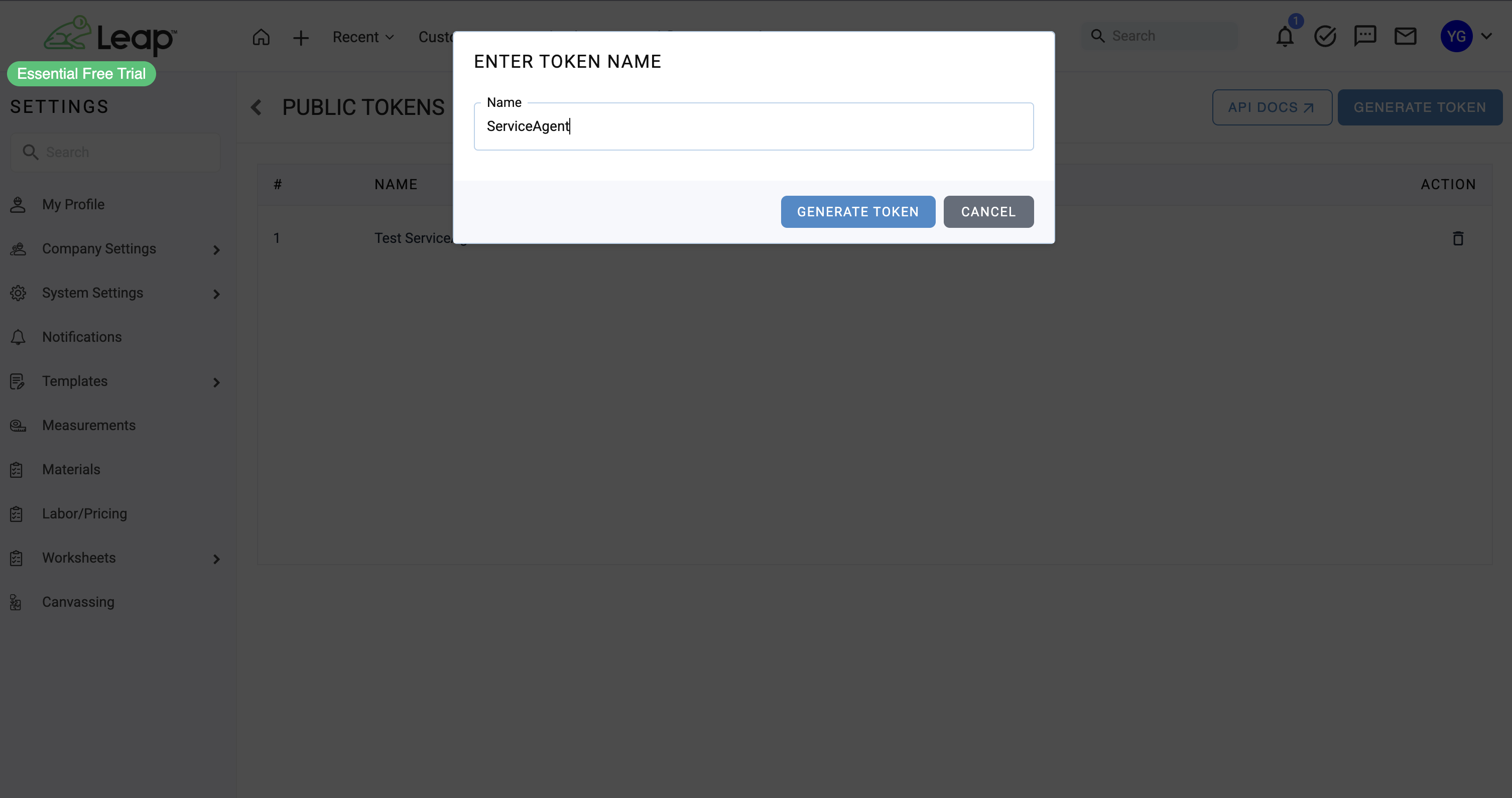
Go to this page and click on Generate Token Button.
Give token a name and click on generate token button.
Copy the Access Token.
💡 Need help finding your Access Token? Check out the image below!
Step 2: Connect Leap to ServiceAgent.ai
Go to your ServiceAgent.ai dashboard.
Navigate to Integrations → Leap.
Enter:
Your Leap Email
Your Access Token
Click Connect.
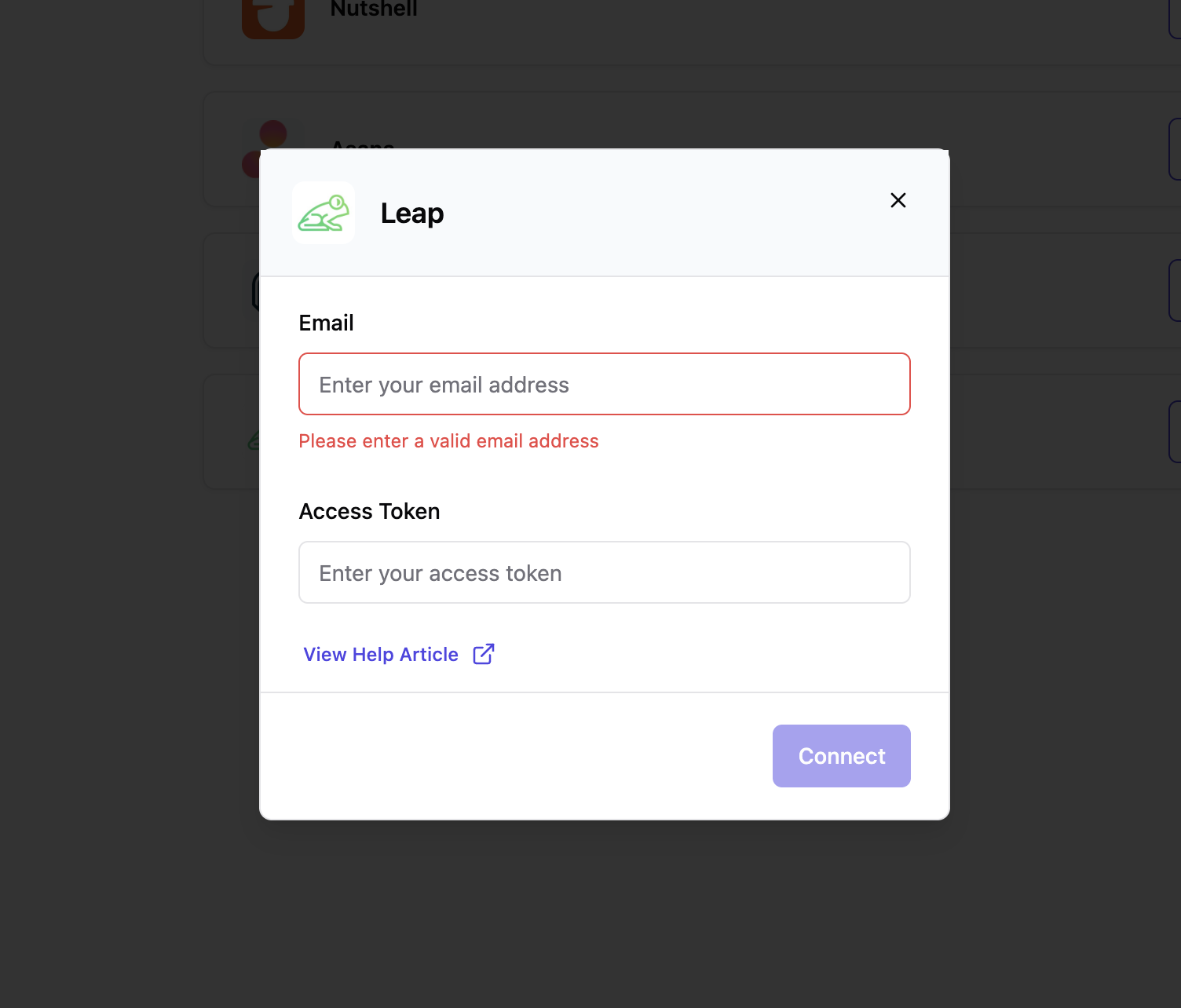
✅ Once connected, you'll see a confirmation message and logging will begin automatically.
📈 What Happens Next?
After integration, every call through ServiceAgent will be logged in your Leap CRM as a new job with a note, containing
📞 Customer Number
☎️ Agent Name & Number
📄 Call Type
🕒 Call Duration
📝 Call Summary
✅ Action Items
🔖 Tags
🔁 Conversation Link
- 📅 Call Timestamp
🛠️ Troubleshooting
Call tasks not showing in Leap CRM?
- Verify that your Access Token is active and hasn’t been revoked or deleted.
🙋 Need Help?
Contact our support team anytime at help@serviceagent.ai or via live chat on your dashboard.